

Use Muse + Freepost to Run Social Media: From Idea to 20+ Platforms
Use Meta Muse for research, drafts and images, then review and schedule posts for Chinese and global platforms in Freepost.

By
Freepost team
You can use Meta Muse to research a topic, draft several versions of a post, and generate images — then move the finished files into Freepost, adapt them for each network, and publish only after you approve. Muse does the thinking and writing. Freepost does the publishing, including Chinese platforms that Muse’s official documentation does not cover.
This is a workflow, not an official integration. Freepost is not affiliated with Meta, and Freepost is not a Muse connector. The Muse steps below stay inside what Meta’s Help Center and Newsroom actually describe. We did not run this walkthrough inside a Muse account for this draft; if you capture your own screenshots later, they can replace the third-party links.
For the shorter “can it post?” answer, see Can Meta Muse post to social media? What it can and can’t do (2026).
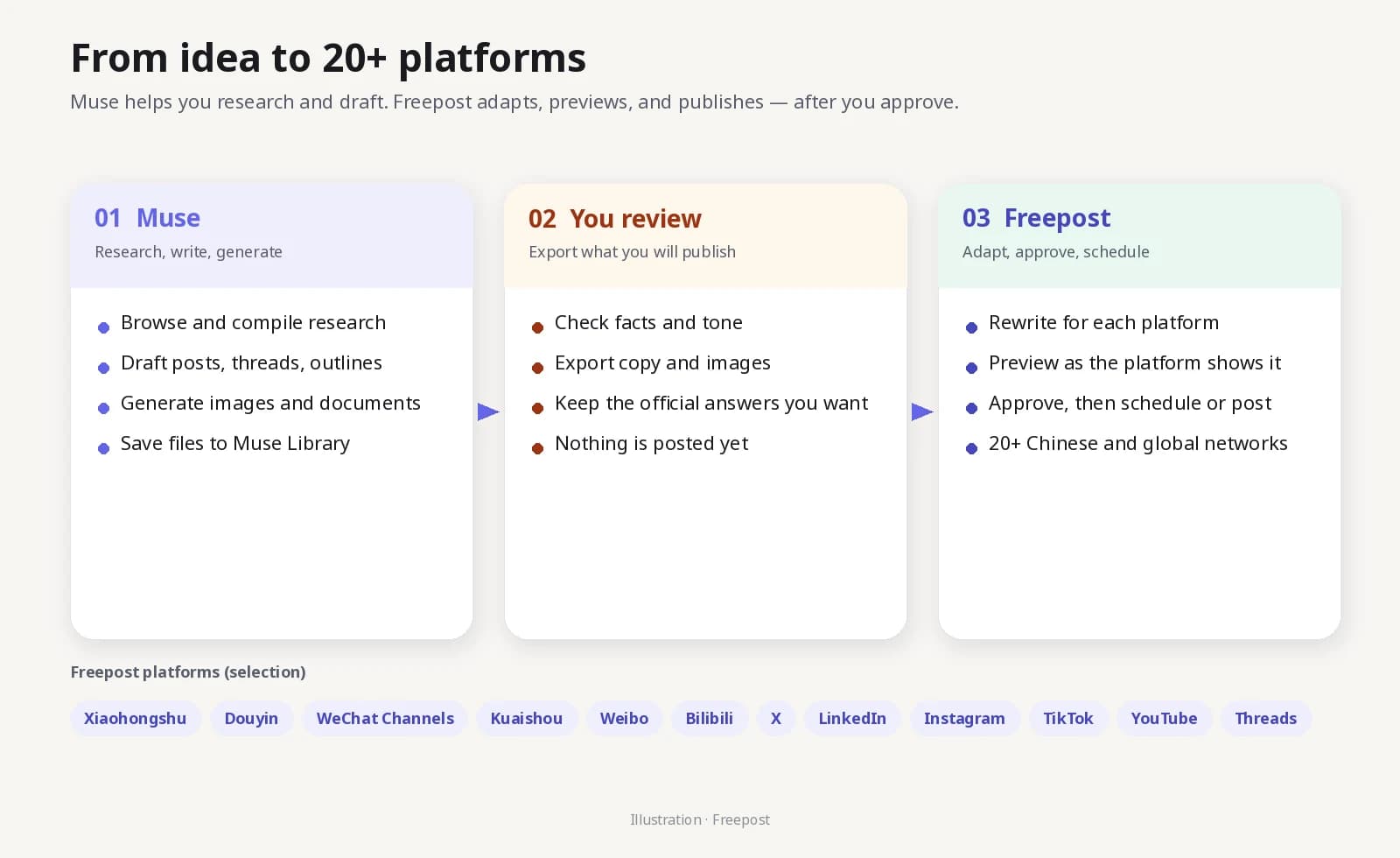
Illustration. A Freepost original diagram, not a Muse screenshot.
Before you start
You need three things:
- A Muse account, where Muse is available. Meta announced a US rollout on 8 September 2026, and Singapore availability on 27 October 2026, on iOS, Android, and muse.ai. Official pages say Muse is free with a usage limit; a paid subscription unlocks more usage. We have not verified prices or a full country list.
- A Freepost account, and the social accounts you actually want to publish to. Sign-in happens on each platform’s own page, inside an isolated browser profile. Passwords are not stored.
- A habit of reviewing everything. Meta says Muse can be inaccurate or take unexpected actions, and that you should monitor it. Freepost will not publish without your approval.
To see Muse’s official interface, use the Google Play listing or the App Store listing. We are not rehosting those screenshots. Mashable’s usage round-up and Meta’s launch post are public pages that also show the product in use.
Step 1. Give Muse one clear job
Getting started with Muse is straightforward: open Chat, describe what you need, and let Muse ask follow-up questions. You do not have to wait for a reply before adding more detail. If the work should stay in its own thread, Meta documents side chats for that.
Be explicit that Muse should not try to publish anything. Official connector docs do not describe social posting, and you do not want a custom connector experiment mixed into a drafting session.
A prompt that stays inside documented skills — research, drafting, and files — looks like this:
Research why a consumer brand might post the same campaign on Xiaohongshu, Douyin, WeChat Channels, Instagram, X, and LinkedIn. Write a one-page briefing with: the job each platform does, three content angles, and risks to avoid (especially off-platform contact details on Chinese platforms). Do not post or schedule anything. Save the briefing as a Markdown file and a PDF.
Ask for a table if you want one. The Help Center specifically says you can request a table, a list, a file, or a tone.
Step 2. Draft the actual posts in Muse
Once the briefing looks right, ask Muse to turn it into copy. Keep platform rules in the prompt, because Muse will not automatically apply Xiaohongshu title limits or an X character count unless you say so.
Using the briefing we just wrote, draft a content kit for a launch post. Do not publish anything. Give me:
- A Xiaohongshu note in Chinese: a title of at most 20 characters, body copy, and 8 suggested tags.
- A Douyin caption and a WeChat Channels caption, both in Chinese, short enough to read on a phone.
- An X post in English, under 250 characters, plus a two-post follow-up.
- A LinkedIn paragraph in English, more specific and less promotional.
- An Instagram caption and a shorter TikTok / YouTube community blurb.
Put the kit in a single Markdown file I can export.
You can also ask for Weibo, Bilibili, Zhihu, Threads, Facebook, or Kuaishou versions in the same pass. Treat these as drafts, not finished posts. Official docs say you should ask for changes if the result is off, and that you can tell Muse to add a note when content was generated by your AI agent.
Step 3. Generate images as files, not as “a post”
Muse’s artifacts article says you can describe an image, get a result in the conversation, and then ask for adjustments such as “make the sky more orange.” Supported formats include PNG, JPEG, GIF, and WebP. Finished files go to the Library tab.
Keep the brief practical:
Generate a 3:4 cover for the Xiaohongshu note and a 16:9 still for YouTube and WeChat Channels. No logos, no fake UI, no made-up screenshots of any social app. Style: clean product photo, natural light, plenty of space for a short title later. Export PNG files into my Library. Do not post them anywhere.
If Muse already drafted on-image text, ask it to produce a text-free version as well. Freepost can attach the file; you still decide whether the words on the image are readable on each platform.
Step 4. Export, then move the files yourself
Official documentation says artifacts are saved to your Muse workspace and shared in the conversation, and that Muse will not share them externally unless you approve. There is no official “send to Freepost” button.
Download the Markdown, PDF, and images from the Muse conversation or Library, then upload the media into Freepost’s media library. Keep the briefing next to the drafts so you can check claims before anything goes out.
This manual hand-off is deliberate. It is also the moment you catch a confident-sounding sentence that is not actually true.
Step 5. Adapt, preview, and approve in Freepost
In Freepost, start from the exported kit rather than from a blank box. The product is built around one draft going out to many accounts: it writes a version for each connected platform, you preview it the way that platform will show it, and you catch what a platform would reject before publishing.
Use that preview. A Xiaohongshu title, a Douyin caption, an X post, and a LinkedIn paragraph should not be identical, even when they share a briefing. If you also post to Kuaishou, Weibo, Bilibili, Zhihu, Baijiahao, Xueqiu, Hupu, Dayu, Alipay, Facebook, Facebook Page, Threads, TikTok, or YouTube, review those previews one by one.
When the set looks right, schedule it on the calendar in your time zone, or publish immediately. Freepost retries if a send fails. Nothing goes out without your approval.
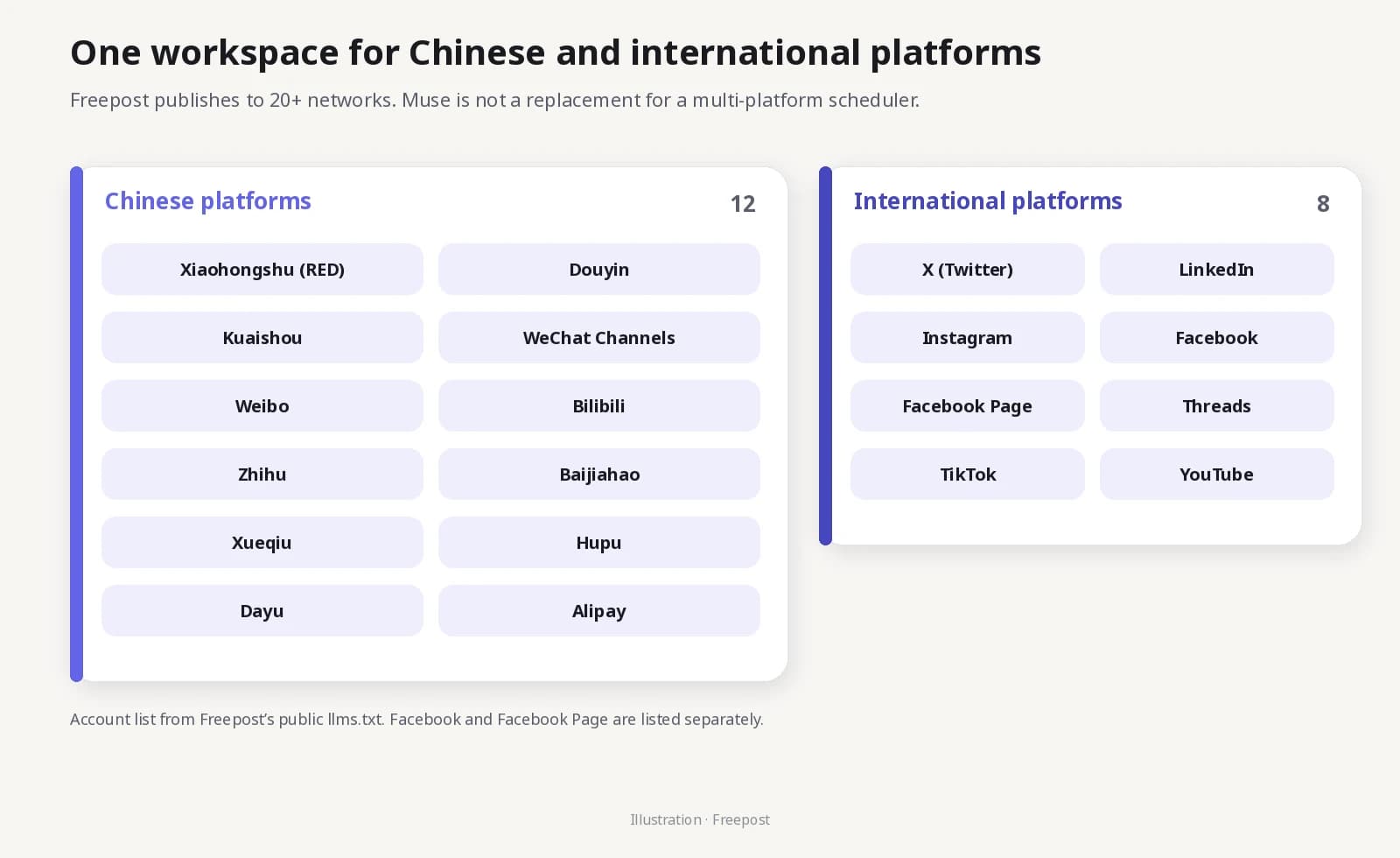
Illustration. Platform names follow Freepost’s public llms.txt.
Step 6. Keep a simple weekly rhythm
Muse can set reminders and keep working on a goal after you close the app, which is useful for a recurring research brief. Freepost can also draft on a schedule: you give it a topic and a rhythm, and it holds the drafts for approval.
A sustainable split looks like this:
- Once a week in Muse: a short research digest, a list of angles, and any new images.
- In Freepost: turn the approved angles into a week of previews, then schedule what you actually want to send.
- After publishing: use Freepost analytics for the last 7, 30, or 90 days, and the plain-language AI summaries, to decide what Muse should research next.
Do not ask Muse to “just post it.” Official pages do not describe that feature, and even if a custom connector promises it, Meta says it does not review custom connectors.
The free Freepost plan is 5 accounts and 10 posts per day, with no credit card. Starter, Pro, and Team plans are ¥39, ¥79, and ¥199 a month.
Frequently asked questions
Do I have to pay for Muse to use this workflow?
Not necessarily. Official Help Center pages say Muse is free with a usage limit, and that you can upgrade or wait for the limit to refresh. Heavy image generation and long research jobs may hit that limit sooner. We have not verified current paid prices.
Can Freepost log into my Muse account, or publish from Muse directly?
No. Today you export files from Muse and import them into Freepost. Freepost signs in to your social accounts on each platform’s own pages; it is not a Muse connector and does not need your Muse login.
Will this get my Xiaohongshu, Douyin, or Instagram account restricted?
No tool can promise that. Follow each platform’s rules, review every preview, and do not paste the same aggressive sales pitch everywhere. Freepost publishes through the platform’s own web pages, from accounts you signed in, and only after you approve.
What if Muse is not available in my country?
Then skip Muse and start the same publishing flow in Freepost: give it the topic, review the platform versions, and schedule them. The value of Freepost does not depend on Muse.
Can I connect Freepost to Muse as a custom connector?
Freepost does not offer that, and this tutorial does not ask you to build one. Meta allows custom connectors but does not review them. If that ever changes in a documented, official way, we can update this guide.
Sources
Muse capabilities in this tutorial follow official pages checked on 18 November 2026:
- Introducing Muse
- How to get started with Muse
- How to use Muse with artifacts
- How Muse works with skills
- How Muse works with Connectors
Freepost features follow the public product description at freepost.io/llms.txt.